Plan your event photo sharing settings with Claude
Before you put the QR code on every table, make sure the gallery works the way you intended. Our planned Claude connection helps you review an existing album and prepare specific changes.
AI connections are coming soon. Our QR galleries are available today. The examples below show the planned connected experience; buying an album does not unlock AI access yet.
Choose your event albumor try the live gallery demo first
Private gallery by link · No guest app · Photos and videos
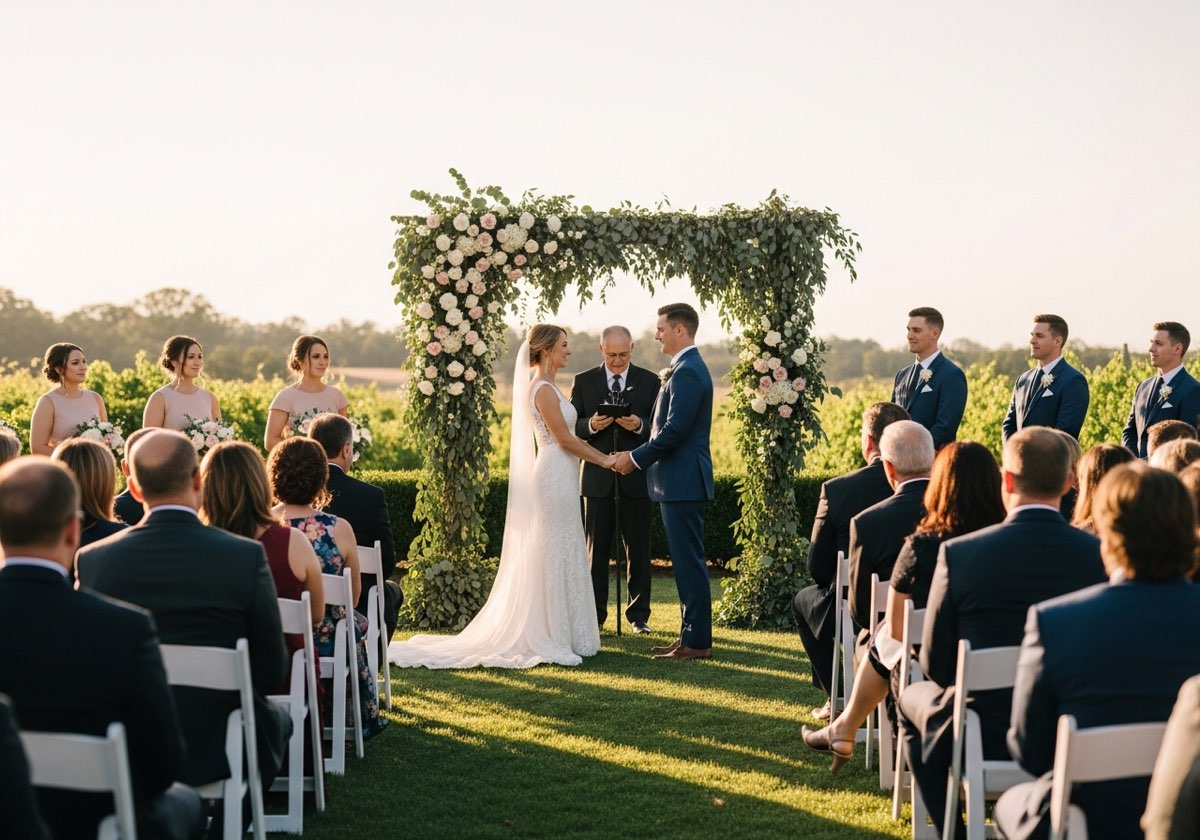
Turn your preferences into a checklist
There are a few decisions worth making before event photo sharing begins. Should everyone see the gallery? Should uploads be enabled? Can guests download each other’s photos? Write those preferences down, then check the actual settings against them.
“Review my event album. I want guests to see only their own uploads, and I want guest downloads off. Show me which settings already match and preview any changes.”
The planned connection gives Claude the current values and available options. Your brief provides the intention. Reviewing both together helps catch a setting you might otherwise overlook.
Three decisions to keep separate
| Decision | What to decide before sharing |
|---|---|
| Who sees the photos? | Choose all available memories, each guest’s uploads plus host uploads, or each guest’s own uploads only. |
| Can guests contribute? | Enable uploads when you want guests to add photos and videos. |
| Can guests download? | Decide whether guest downloads should be available. |
A private link is still a link someone can forward. Share it with your intended guests and choose the visibility setting that fits your event. Read more about private event photo galleries.
Get the decisions out of the way before the day

A short welcome message tells them what you would love them to share.

Agree on visibility with your cohost before sending out the link.
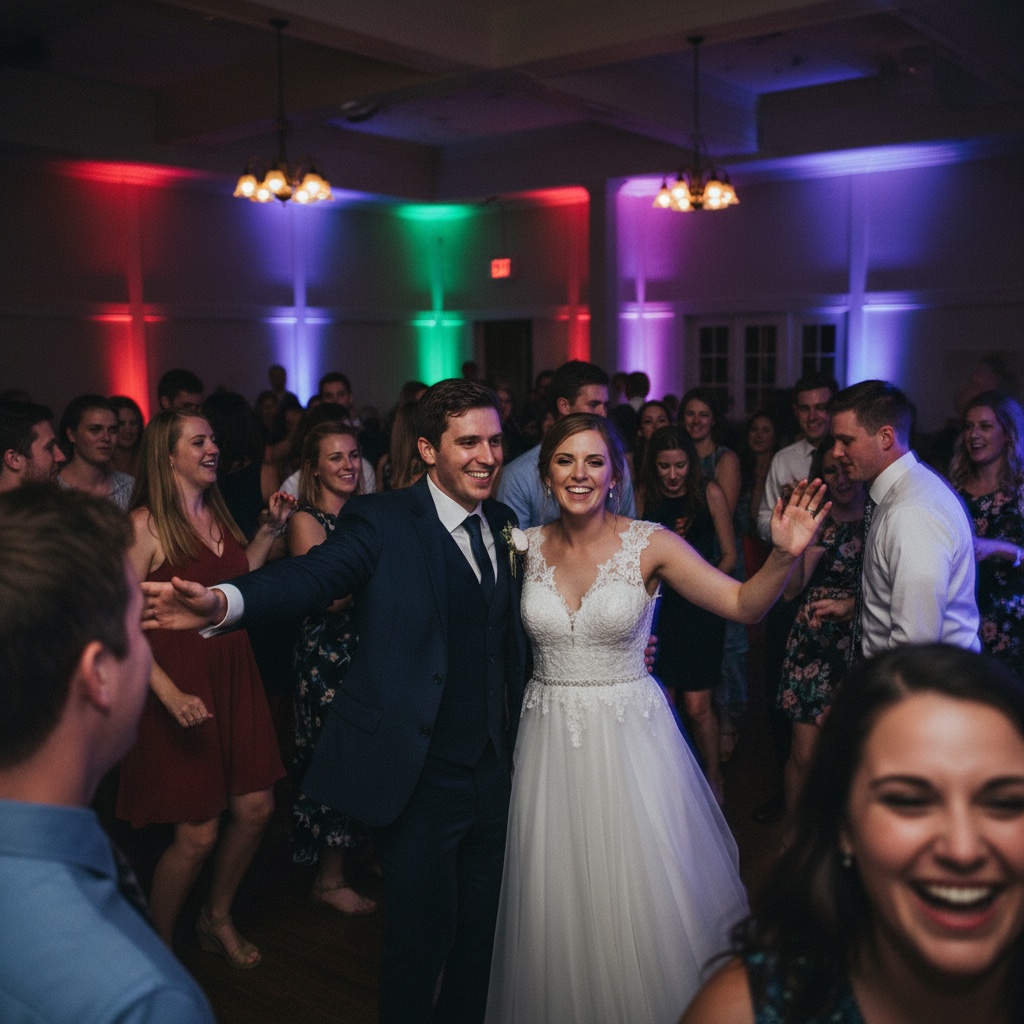
Guests use their browser. They do not need your AI assistant.
Review a small change, then check the result
Ask Claude to preview only the fields you want to change. Once you have read the proposed values, request the save and open the guest gallery in your browser. A saved settings change affects the live album.
“Keep the current colours and welcome message. Preview a slideshow that shuffles photos, uses a fade transition and waits five seconds between slides.”
This is a settings workflow for your photo sharing app for events. It does not review the content of individual photos, choose the best images or moderate uploads for you.
Hand back tasks that need the website
Use Our Event Album directly to create an album, upload a cover, review guest contributions or download your collection. Once the connection is available, Claude can help with supported settings in the same account. You can disconnect it from your account whenever you choose.
Frequently asked questions
Can I connect Claude to my album now?
The Our Event Album connection is coming soon. This guide previews the intended workflow for an existing account. You can manage all of these gallery settings on the website today.
What does guests and host visibility mean?
In this mode, guests see their own uploads plus host uploads. It does not show every guest’s photos to every other guest. Choose open visibility if you want guests to browse all available memories.
Can Claude check a gallery that somebody else owns?
The planned connection can access an album only if your Our Event Album account owns it or is a cohost. Having a guest QR link does not grant host management access.
Does the assistant receive the entire photo collection?
The planned tools return gallery settings, photo and video counts, and sharing links. They do not return individual guest photos or videos for the assistant to inspect.
Find the guide that fits your plans
Explore QR code photo sharing, see how guest uploads work, or read our privacy policy.
Have a place for the photos before the first guest arrives
Start with a private album, share its QR code and let guests add the moments you missed. You can manage your gallery on the website today.
See albums and pricingShare your gallery link only with people you want to invite. You choose whether guests can see everyone’s uploads or only their own.
Our Event Album is an independent service. ChatGPT, Claude and Grok are products of their respective owners. No marketplace listing or endorsement is implied.

